Free Best Information Technology Practices
Simple good habits can save you power without being too inconvenient.
- Implement computer power management on all computers both for mains and battery modes for laptops
- Activate advanced BIOS features such as S3 sleep, Cool n Quiet and Speedstep
- Shutdown computers and monitors when you are not using them
- Standby power waste can be avoided by turning off the computer at the wall
- Shutdown peripheral equipment at the wall when not in use E.g. printers, scanner, speakers, external hard drives
- Laptops usually consume less power. Use a laptop instead of desktop where a choice is possible
- Use a LED LCD screen rather than a CRT or LCD screen, where a choice is possible as LED LCD uses around half the power
- Try to avoid printing documents by reading them online
- If printing then try to print in duplex mode
- Ask for documents in electronic format e.g. Statements, Annual reports etc.
- Use email instead of post
- Paper filing can be replaced by digital storage in some cases
Table of Contents
Reference Links
Laptop vs. Desktop
Much of the power consumption of a computer is dependant on the processor chosen and then
the chipset design that goes with it. Laptops are usually of a more energy
efficient design to accommodate working on batteries. Laptop power supplies
have a lower consumption rate with ratings of 60 to 90 Watts being common.
Desktops will likely usually have 250 to 500 Watt power supplies although 1000
Watt supplies are available. The power supply rating relates to output wattage
while the input wattage will be higher. If you have a desktop add the power
consumption of the monitor which may add 30 to 120 Watts, remembering LCD uses
less power than a CRT screen. Thankfully modern processors are consuming less energy for their
productive output and new small form factor desktops are tending to be designed
with efficient processors and power supplies.
Sample Modern Green Desktop with 19 inch LCD screen with power measurements
| Settings |
Consumption in watts |
| No power management |
100 |
| Screen power management on |
57 |
| Screen and drive power management on |
47 |
| Computer in full S3 sleep mode |
3 |
Sample Modern Laptop with 15.4 inch LCD screen with power measurements
| Settings |
Consumption in watts |
| No power management |
45 |
| Screen power management on |
30 |
| Screen and drive power management on |
20 |
| Laptop in full S3 sleep mode |
1.5 |
Suggestions:
Apply computer power management to all computers.
For laptops add power management for battery mode.
Choose Energy Star 5 computers with 80 Plus (>80% efficiency) power supplies.
A laptop connected to mains power avoids extra power losses involved with recharging batteries.
Related Sections:
Thin Client vs.Desktop
80 Plus Power Supplies
Energy Star 4
BIOS settings
New Low Power Processors
Local Assistance:
Computer Energy Calculator
Computer Power Consumption Calculator
References for further information
1
45
46
47
126
Table of Contents
Reference Links
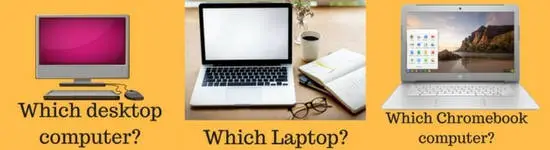
Thin Client vs. Desktop
 Thin Clients are devices that connect to a server and run a virtual computing
session, alleviating the need for a desktop computer on each desk. At the thin
client it receives screen information from a server and sends keyboard and
mouse changes. A new feature of thin clients is the inclusion of decent screen
resolution (1600 x 1200), multimedia performance and VOIP capabilities. A thin
client uses about 10 Watts. Add approximately 30 Watts for a LCD screen when in
use, with 1 watt for standby. A thin client can operate Linux, Windows 7 / 8 / 10
using the same hardware thus avoiding desktop upgrade cycles. The
average bandwidth is 300 kb /second. A
modern server processor can support 100 thin clients. A blade server enclosure could
support 100's of thin client users. Your memory usage is centralised and common
memory blocks are not duplicated, so you'll only need 512 kB per Windows PC for
example. The overall consumption expected for 20 users changes from 4300 Watts
with desktops to 1840 Watts with thin clients and a server. Auxiliary benefits
are less heat; no moving parts to break; light weight as each thin client
weighs around 500 grams; compact enough to clip to back of an LCD screen; easy
to deploy even remotely; just plug it in; better security as data held in one
place only; the USB can be
disabled; starts quickly in less than 10 seconds; less network
bandwidth which is important for multiple site configurations; and it is easy
to update the Standard Operating Environment. Additional savings can be made
with some thin clients capable of running a VOIP soft phone which means you
won't need a regular phone on the desk;
no phone cabling needed to each desk; save half the communication cabling
needed for each desk; and save 5-10 watts for every regular phone not needed. A
thin client session can be run from a desktop or laptop computer independently
from their local computer operations as VPN connections and Internet browser
based access can be achieved.
Thin Clients are devices that connect to a server and run a virtual computing
session, alleviating the need for a desktop computer on each desk. At the thin
client it receives screen information from a server and sends keyboard and
mouse changes. A new feature of thin clients is the inclusion of decent screen
resolution (1600 x 1200), multimedia performance and VOIP capabilities. A thin
client uses about 10 Watts. Add approximately 30 Watts for a LCD screen when in
use, with 1 watt for standby. A thin client can operate Linux, Windows 7 / 8 / 10
using the same hardware thus avoiding desktop upgrade cycles. The
average bandwidth is 300 kb /second. A
modern server processor can support 100 thin clients. A blade server enclosure could
support 100's of thin client users. Your memory usage is centralised and common
memory blocks are not duplicated, so you'll only need 512 kB per Windows PC for
example. The overall consumption expected for 20 users changes from 4300 Watts
with desktops to 1840 Watts with thin clients and a server. Auxiliary benefits
are less heat; no moving parts to break; light weight as each thin client
weighs around 500 grams; compact enough to clip to back of an LCD screen; easy
to deploy even remotely; just plug it in; better security as data held in one
place only; the USB can be
disabled; starts quickly in less than 10 seconds; less network
bandwidth which is important for multiple site configurations; and it is easy
to update the Standard Operating Environment. Additional savings can be made
with some thin clients capable of running a VOIP soft phone which means you
won't need a regular phone on the desk;
no phone cabling needed to each desk; save half the communication cabling
needed for each desk; and save 5-10 watts for every regular phone not needed. A
thin client session can be run from a desktop or laptop computer independently
from their local computer operations as VPN connections and Internet browser
based access can be achieved.
Suggestions:
Useful for computer lab rooms, libraries and areas where common applications are used by many.
Related Sections:
Laptop vs. Desktop
Virtual Computing with Storage Area Network
VOIP
Local Assistance:
Thin Clients with Hosted Server
Desktop, Thin Client, Nettop review
References for further information
47
48
Table of Contents
Reference Links
Virtual Computing with Storage Area Network
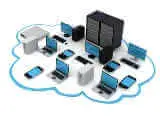 A virtual computer (virtual machine or VM) is a representation of a full computer with
hardware the configuration held within two files. Many virtual computers can be
run on a single physical computer simultaneously with ratios of 10:1 possible.
There are limitations on how many VM's can be successfully run concurrently on
a computer and there is no redundancy in case of hardware failure. Having
multiple physical computers connected to a single Storage Area Network (SAN) which holds the VMs files solves these
limitations. The SAN can
be upgraded as needed without going offline. VM's can be associated between
physical computers while active. This is useful for maintenance of a server,
unplanned outages of a server or to move VMs to less servers and shutting down
a server to save power. Some of these functions can be programmed to occur
automatically. Each VM deployed saves power, space, cooling, maintenance and
time. Data centres can achieve more within their existing fixed power and space
restrictions. SAN can
connect to servers with 400 MB/second bandwidth using fibre and some models can
hold up to 900 TB. SAN
176mm high rack space enclosures can hold 7.5 TB each (7500 GB). Between power
consumption, cooling needs and UPS overhead, estimate $1000 saved per year for
every server VM deployed.
A virtual computer (virtual machine or VM) is a representation of a full computer with
hardware the configuration held within two files. Many virtual computers can be
run on a single physical computer simultaneously with ratios of 10:1 possible.
There are limitations on how many VM's can be successfully run concurrently on
a computer and there is no redundancy in case of hardware failure. Having
multiple physical computers connected to a single Storage Area Network (SAN) which holds the VMs files solves these
limitations. The SAN can
be upgraded as needed without going offline. VM's can be associated between
physical computers while active. This is useful for maintenance of a server,
unplanned outages of a server or to move VMs to less servers and shutting down
a server to save power. Some of these functions can be programmed to occur
automatically. Each VM deployed saves power, space, cooling, maintenance and
time. Data centres can achieve more within their existing fixed power and space
restrictions. SAN can
connect to servers with 400 MB/second bandwidth using fibre and some models can
hold up to 900 TB. SAN
176mm high rack space enclosures can hold 7.5 TB each (7500 GB). Between power
consumption, cooling needs and UPS overhead, estimate $1000 saved per year for
every server VM deployed.
Virtual Computing Examples
| Company |
Servers Before |
Servers After |
| Tourism Australia |
70 |
35 |
| Stirling Council WA |
54 |
7 |
| Brisbane Council |
85 |
20 |
| Orica |
40 |
10 |
| Townsville (old) Council |
100 |
53 |
 Suggestions:
Consider VM for servers running 1-15% utilisation average,
consider consolidating old server functions into fewer modern servers or
blades.
Suggestions:
Consider VM for servers running 1-15% utilisation average,
consider consolidating old server functions into fewer modern servers or
blades.
Related Sections:
Thin Client vs. Desktop
Network Attached Storage
References for further information
49
50
120
Table of Contents
Reference Links
80 Plus Power Supplies
 80 Plus is a standard for computer power supplies than have a minimum 80% efficiency at
20%, 50% and 100% load and over 0.9 power factor. Standards above plain 80 Plus
is Bronze, Silver and Gold over 90% efficient. A saving in power in the order
of 28% is possible by using an 80 Plus standard power supply. You will save
approximately 30% of the cooling costs associated with the computer. Some
maintenance costs are reduced due to there being less heat in the computer. The
extra investment for an 80 Plus power supply is returned in less than 1 year.
There are over 700 power supplies than pass the 80 Plus standard. See reference
links for an online calculator and suppliers.
80 Plus is a standard for computer power supplies than have a minimum 80% efficiency at
20%, 50% and 100% load and over 0.9 power factor. Standards above plain 80 Plus
is Bronze, Silver and Gold over 90% efficient. A saving in power in the order
of 28% is possible by using an 80 Plus standard power supply. You will save
approximately 30% of the cooling costs associated with the computer. Some
maintenance costs are reduced due to there being less heat in the computer. The
extra investment for an 80 Plus power supply is returned in less than 1 year.
There are over 700 power supplies than pass the 80 Plus standard. See reference
links for an online calculator and suppliers.
Sample power saving calculator for 80 Plus power supplies
| Computer Load |
Power In (Watts) |
Power In (Watts) |
Year Consumption (kWh) |
Year Consumption (kWh) |
Year Savings |
| Watts |
60% efficient supply |
85% efficient supply |
250 x 9 hr days (60%) |
250 x 9 hr days (85%) |
kWh |
| 100 |
166.67 |
117.65 |
375.00 |
264.71 |
110.29 |
| 200 |
333.33 |
235.29 |
750.00 |
529.41 |
220.59 |
| 300 |
500.00 |
352.94 |
1125.00 |
794.12 |
330.88 |
| 400 |
666.67 |
470.59 |
1500.00 |
1058.82 |
441.18 |
| 500 |
833.33 |
588.24 |
1875.00 |
1323.53 |
551.47 |
Add standby consumption for non operational periods.
Potential money saved per year using an 80 Plus computer power supply
Use power saved value from first table. Multiple results by the number of computers in the workplace.
| Power kWh Saved / $ kWh |
Local cost of electricity in dollars per kilowatt hour (kWh) |
|
0.08 |
0.1 |
0.12 |
0.14 |
0.16 |
0.18 |
0.2 |
0.22 |
0.24 |
|---|
| 110.29 |
$8.82 |
$11.03 |
$13.23 |
$15.44 |
$17.65 |
$19.85 |
$22.06 |
$24.26 |
$26.47 |
| 220.59 |
$17.65 |
$22.06 |
$26.47 |
$30.88 |
$35.29 |
$39.71 |
$44.12 |
$48.53 |
$52.94 |
| 330.88 |
$26.47 |
$33.09 |
$39.71 |
$46.32 |
$52.94 |
$59.56 |
$66.18 |
$72.79 |
$79.41 |
| 441.18 |
$35.29 |
$44.12 |
$52.94 |
$61.77 |
$70.59 |
$79.41 |
$88.24 |
$97.06 |
$105.88 |
| 551.47 |
$44.12 |
$55.15 |
$66.18 |
$77.21 |
$88.24 |
$99.26 |
$110.29 |
$121.32 |
$132.35 |
Suggestions:
Look for 80 Plus logo for all new desktop / server computer purchases.
Consider the expected 1 to 30 watts of power supply consumption in standby
mode. Servers with redundant power supplies have quite high standby power consumption
in the order of 10 to 200 watts.
Related Sections:
Power Factor Correction
Laptop vs. Desktop
Measurement
USB Power board
New Low Power Processors
Local Assistance:
Computer Power Consumption Calculator
References for further information
1
25
51
144
Table of Contents
Reference Links
Energy Star 5
Energy Star 5 is a standard relating to computers relate to the maximum power consumption
for various activities. Governments are pushing for this to be the standard for
new computer hardware. Their requirements usually include an 80 Plus power
supply with computer power management enabled. Windows Server 2012 and Windows
10 have more power management options available for control.
| Computer |
Idle |
Sleep |
Standby |
| Desktop |
50 Watts |
4 Watts |
2 Watts |
| Notebook |
14 Watts |
1.7 Watts |
less than 1 Watt |
| Thin Client |
15 watts |
less than 2 watts |
less than 1 Watt |
| Small Scale Server |
55 watts |
N/A |
N/A |
Power Management settings needed as part of Energy Star 5 Standard are:
-
Display to sleep in 15 minutes or less
-
Processor to sleep in 30 minutes or less
-
Network speed reduced from 1 Gbps to 100 Mbps or 10 Mbps when sleeping
Energy Star 5 further specifications include:
- The inclusion of servers, thin clients, game consoles and workstations within the rating scheme
- Computers with 82% efficient at 20% load. 85% efficient at 50% load.
- Power factor at least 0.90 at 50% load.
- New formulas available to estimate yearly power consumption.
Suggestions:
Look for computers with Energy Star 5 labels and buy them as a
preference. Turn on existing computers power management options.
Related Sections:
80 Plus Power Supplies
BIOS settings
Local Assistance:
Computer Power Consumption Calculator
References for further information
1
23
52
120
121
Table of Contents
Reference Links
VOIP
The Voice on Internet Protocol allows you to implement telephony over your computer
network. Calls that run over your own network are free of telephony carrier
charges. One IP based PABX can work 1000's of IP extensions across an LAN and WAN infrastructure to the many
connected locations. IP extensions can also be operated with 2 port network
switches to support both the phone and the computer therefore saves on cabling.
Thin clients can be used for both telephony and computing in the one device.
Some telephony trunk capacity can be replaced by IP trunks. VOIP can be
performed by computers representing a phone using software thereby avoiding
having a separate telephone and another benefit is that your extension can move
with your computer. Using a computer soft phone, the Internet and a VPN
connection to the office allows your work extension to be used from almost any
location. VOIP can also be applied using a smart phone with wireless networking
allowing you to have your work extension in your pocket wherever wireless
networking is present. VOIP can allow your computer network to also perform
telephony, so branch offices do not need separate a phone system which will
save you power and money.
Suggestions:
See if VOIP suits you before adding trunks or moving locations or if long distance phone charges are too high.
NBN also uses VOIP. How can your NBN data connection help with telephony costs?
Related Sections:
Thin Client vs. Desktop
Video Conferencing
Local Assistance:
VOIP with remote provider
NBN website category
References for further information
53
Table of Contents
Reference Links
Video Conferencing
 Video conferencing is now possible across the Internet free of charge, excluding your
Internet bandwidth charges. USB
web camera will cost less than $50 and the software can be downloaded for free.
384 kbps or better Internet bandwidth both ways with dual core processors will
allow efficient video conferencing. Other features possible include sharing a
whiteboard, sharing files, text chat and logs of activity. This technology can
save on meeting costs in terms of flights, accommodation, airport transfers and
time. You can perform more valuable work face to face without leaving your
desk. Video conferencing is also possible using a computer VOIP soft phone at
work.
Video conferencing is now possible across the Internet free of charge, excluding your
Internet bandwidth charges. USB
web camera will cost less than $50 and the software can be downloaded for free.
384 kbps or better Internet bandwidth both ways with dual core processors will
allow efficient video conferencing. Other features possible include sharing a
whiteboard, sharing files, text chat and logs of activity. This technology can
save on meeting costs in terms of flights, accommodation, airport transfers and
time. You can perform more valuable work face to face without leaving your
desk. Video conferencing is also possible using a computer VOIP soft phone at
work.
Suggestions:
Try it
Related Sections:
VOIP
Local Assistance:
VOIP with remote provider
References for further information
54
55
Table of Contents
Reference Links
Network Attached Storage
 This technology basically connects a hard disk to your computer network to allow
full time shared access for your network users. This technology will suit small
to medium networks where a dedicated server may not be needed. NAS can also
include feature file sharing, backup, web server, database server, print server
and multimedia server functions. The advantage of NAS devices is that it can
run on far less power than a dedicated server, for example it uses 17 watts in
operation and 6 watts in sleep mode. Other functions possible include remote
access across the Internet to your NAS this is useful for connecting to home
storage from any location. NAS devices usually come in 1, 2, 4 drive
enclosures. RAID configurations are possible for redundancy. NAS devices can
replicate from each other for backup purposes. Not adding another server
dedicated server on your network may save you $1000 per year in electricity.
This technology basically connects a hard disk to your computer network to allow
full time shared access for your network users. This technology will suit small
to medium networks where a dedicated server may not be needed. NAS can also
include feature file sharing, backup, web server, database server, print server
and multimedia server functions. The advantage of NAS devices is that it can
run on far less power than a dedicated server, for example it uses 17 watts in
operation and 6 watts in sleep mode. Other functions possible include remote
access across the Internet to your NAS this is useful for connecting to home
storage from any location. NAS devices usually come in 1, 2, 4 drive
enclosures. RAID configurations are possible for redundancy. NAS devices can
replicate from each other for backup purposes. Not adding another server
dedicated server on your network may save you $1000 per year in electricity.
Suggestions:
Consider NAS for department storage, special projects, Virtual Machine
development, and centralised backups. For larger scenarios consider SAN storage area network.
Related Sections:
Virtual Computing with Storage Area Network
References for further information
56
Table of Contents
Reference Links
New Low Power Processors
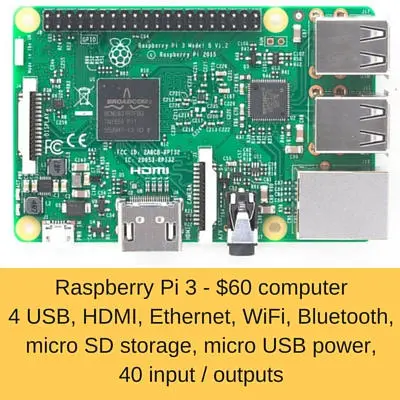 There is a class of processors that use much less power than regular laptops. They can be found
in the new generation of ultra light laptops, tablets, smart phones and dedicated
devices such as digital set top boxes. Processors in this class include the
Intel Atom (4 watts), Via Eden (2.5 to 7 watts) and the ARM (< 0.1 watt) with is found in tablets, media
players, consumer electronics and smart phones. If you have a dedicated simple
computing task, could one of these low power processors achieve your results? You'll find the ARM
processor in Chromebooks which are able to achieve a 12 hour work day on batteries only. This processor
varies the internal clock rate to suit the demand many times a second which
saves power.
There is a class of processors that use much less power than regular laptops. They can be found
in the new generation of ultra light laptops, tablets, smart phones and dedicated
devices such as digital set top boxes. Processors in this class include the
Intel Atom (4 watts), Via Eden (2.5 to 7 watts) and the ARM (< 0.1 watt) with is found in tablets, media
players, consumer electronics and smart phones. If you have a dedicated simple
computing task, could one of these low power processors achieve your results? You'll find the ARM
processor in Chromebooks which are able to achieve a 12 hour work day on batteries only. This processor
varies the internal clock rate to suit the demand many times a second which
saves power.
Suggestions:
Consider future requirements versus processors available and consider
choosing a new generation low powered processor. Enable computer power
management. Turn off wireless networking when not required.
Related Sections:
Thin Client vs. Desktop
Local Assistance:
Computer Power Consumption Calculator
References for further information
57
58
128
129
Table of Contents
Reference Links
USB Power board
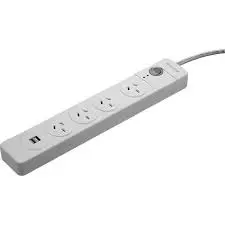 A simple way to control the power of the many devices connected to a computer is to use
a USB controlled power
board. Connect all the computer peripherals such as monitor, speakers, scanner,
external hard drive and printer to the power board. Connect a USB lead from the power board to the
computer. When the computer powers up, 5 volts is on the USB lead which then closes a relay to power
up the USB power board.
Once connected it takes care of itself. The power board will cost around $60
and the USB lead about $5.
You save on standby loads of all the peripherals. The saving could be
substantial if CRT
monitors, laser printers and amplifiers are included.
A simple way to control the power of the many devices connected to a computer is to use
a USB controlled power
board. Connect all the computer peripherals such as monitor, speakers, scanner,
external hard drive and printer to the power board. Connect a USB lead from the power board to the
computer. When the computer powers up, 5 volts is on the USB lead which then closes a relay to power
up the USB power board.
Once connected it takes care of itself. The power board will cost around $60
and the USB lead about $5.
You save on standby loads of all the peripherals. The saving could be
substantial if CRT
monitors, laser printers and amplifiers are included.
Suggestions:
As an alternative turn off all computer equipment manually at the wall when finished
Related Sections:
Standby loads table
References for further
information
7
131
149
Table of Contents
Reference Links
BIOS settings
BIOS relates to how you computer motherboard is configured to work with computer hardware.
There are certain features on motherboards that need to be turned on to get the
maximum effect from computer power management. These include:
- Advanced Configuration and Power Interface (ACPI) : Enabled
- Smart Fan : Enabled
- Suspend Mode S3 : Enabled
- Speed Step (Intel) / Cool n quiet (AMD) : Enabled
Older computers will have most of the power management features turned off by default.
Motherboard default specifications are improving all the time especially to
comply with Energy Star 5. The BIOS features need to work with the operating
system computer power management system being enabled to achieve good power
savings. Compare the power usage of a desktop or laptop running at full power
all day relative to a few watts in sleep mode. In the case of networked
computers power management can be defined in group policies with some software
help some of which are listed in the references. Specialised computer power
management software can save approximately 38% of computing electricity by
using advanced features such as to sleep or shut down computers remotely as
required.
Suggestions:
Review your BIOS manual to see what energy saving adjustments can be
made. Buy Energy Star 5 computers as most adjustments will be already enabled.
Turn on computer power management options.
Related Sections:
Energy Star 5
Laptop vs. Desktop
References for further information
59
60
61
Table of Contents
Reference Links